
Advanced File Settings
Project administrators can access and change Advanced settings.
- Click the Files tool.
- Click the Settings drop-down on the right.
- Click Advanced settings.
- Public Links to Sheets and Files
- Show Folder Path (web only)
- Enable Members With Create + Upload Permission to Edit Custom Attribute Values
- Publishing Markups
Public Links to Sheets and Files
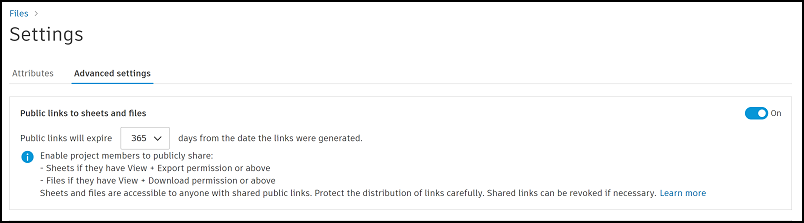
The Public links to sheets and files setting allows you to enable or disable sharing links to a file to non-project members. When turned on, only project members with at least View + Download permissions can generate a publicly shareable link to a file or folder.
The drop-down list in the setting allows you to define between 30 - 365 days that the links are active for after they are generated. See the Share Files topic to learn more about the workflows involved in sharing files with either project members or the public.
Show Folder Path (web only)

Turn on Show Folder Path (web only) setting to allow members to see the full folder path, including folders they don't have permission to view, as long as they have permission to at least one subfolder.
Enable Members With Create + Upload Permission to Edit Custom Attribute Values

Turn this setting on to enable project members with Create + Upload folder permission to edit custom attribute values for the file versions they've uploaded.
Publishing Markups

These settings let you specify markup publishing settings, including preventing members from publishing markups or editing published markups.
Publish markups by default in sheets and files
Turn the Publish markups by default in sheets and files setting on to automatically publish markups as soon as they are created.
This setting is off by default. Markups remain unpublished until a project administrator turns it on. Markups created by project members without the correct permissions to publish will remain unpublished by default even if this setting is turned on. Issue pins will continue to be published by default. All project members still have the option to unpublish markups.
Prevent publishing markups and editing published markups on non-current file versions
The Prevent publishing markups and editing published markups on non-current file versions setting is turned on for new projects by default and only lets members publish and edit published markups on current file versions.
To allow members to publish and edit published markups on non-current file versions, turn this setting off.
Prevent publishing markups and editing published markups on file versions with the following review statuses
The Prevent publishing markups and editing published markups on file versions with the following review statuses setting is turned off by default for new projects. To turn on, click the toggle to open the drop-down list of review statuses, then:
Select one or more review statuses.
Note: You can select a maximum of 5 review statuses.Click away from the drop-down list and the setting will turn on using the selected review statuses.
You can click the review status field to add more, or click the X next to a review status to remove it from the setting. If you attempt to remove all the review statuses, a dialog will prompt you as removing all the review statuses will turn off the setting.