
Search Sets
Search sets help you find and reuse groups of model objects based on property criteria in Autodesk Forma. Use them in repeatable workflows such as object selection and model filtering.
- What are Search Sets
- Building Search Set Queries
- Open the Search Sets Panel
- Search Sets Permissions
- Limitations
What are Search Sets
Search sets are saved queries that scan model data and return objects matching your criteria. You define the queries using basic or advanced filters in the viewer. These use model properties such as category, type, system, and length, depending on the object-level data in your models and views. Search sets query model data only, not platform data such as statuses, dates, or members.
Search sets are available at the project level, in a dedicated panel in the viewer. From the panel, you can run search sets, create and edit them, duplicate and move them, and organize them into folders. Project administrators can also import search sets from other projects. You can access search sets in the Model browser panel to use them as filters.
Building Search Set Queries
Search sets use the basic and advanced filter functionality that is also available in the Model browser panel in the viewer. They can be created based on basic model object properties such as:
- Disciplines
- Categories
- Family
- Type
- Model name
- System or assembly
- Numeric values such as diameter, length, or thickness
In addition, the advanced filters let you create more customized rules based on properties, operators, and values, which can be combined using the logical conditions and or or. See Model Browser for more information.
When building advanced queries, you can also:
- Group rules together to build more complex queries.
- Reorder rules by dragging them.
A search set can include up to 100 rules.
Open the Search Sets Panel
In Autodesk Forma, open a model in the viewer.
Click the Search sets icon
 at the bottom left of the navigation toolbar. This opens the Search sets panel.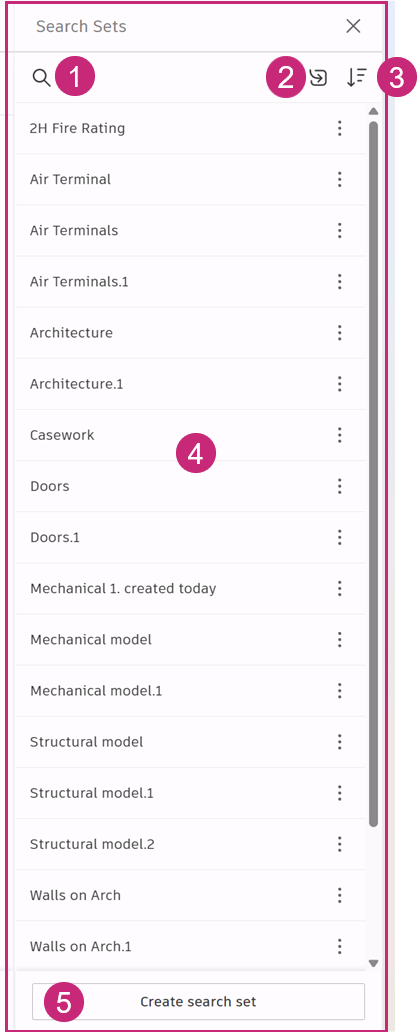
From the panel, you can:
- Search the library. Search matches folder and search set names across the entire folder hierarchy, not just the current folder.
- Sort the list alphanumerically or by date created.
- Organize search sets into folders.
- Import search sets from other projects (project administrators only).
- Create a search set.
See Create, Import, and Use Search Sets and Manage Search Sets for more information.
Search Sets Permissions
Project members must have at least View permission for the folder to work with search sets.
| Capability | Creator | Non-creator | Project Admin |
|---|---|---|---|
| Create and save | Yes | Yes | Yes |
| View criteria | Yes | Yes | Yes |
| Apply (filter or select) | Yes | Yes | Yes |
| Duplicate or Save as new | Yes | Yes | Yes |
| Edit query and update | Yes | No | Yes |
| Rename | Yes | No | Yes |
| Move | Yes | No | Yes |
| Delete | Yes | No | Yes |
| Import | No | No | Yes |
Limitations
- A search set can include a maximum of 100 rules.
- Search set names must be unique and can contain up to 64 characters.
- Search sets are public, available to all project members with the required permissions. Private search sets aren't supported.
- You can't merge multiple search sets into a single search set.
- You can organize search sets into a maximum of three folder levels.
- You can't move or delete multiple search sets or folders at once.