
Adaptive Degradation Tab
Use these settings to temporarily deactivate taxing operations during interactive manipulations. These settings do not affect the final renders.
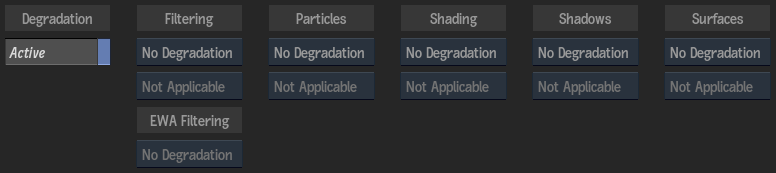
Active
Enable to activate adaptive degradation display settings. Use to prevent slowdowns of the image window display when changing Action settings. Press Ctrl+D to activate or deactivate degradation settings.
You'll see an icon  displayed at the bottom right corner of the image window when degradation is active in Action.
Synchronize All
Enable to synchronize all Batch FX Action nodes with the Adaptive Degradation settings of the current Action node.
Filtering Degrade option
Select whether to degrade filtering selections in the image window when changing any Action settings.
Filtering Update option
Select whether to always degrade filtering selections, or on manipulation only.
EWA Filtering option
Select whether to apply EWA or EWA+Linear filtering on maps (if selected in the Filter option) only when processing (On Process Only), or all the time when working in Action (Degrade).
Particles Degrade option
Select a particle quality display setting.
Particles Update option
Select whether to always degrade particles selections, or on manipulation only.
Shading Degrade option
Select whether to degrade shading selections in the image window when changing any Action settings.
Shading Update option
Select whether to always degrade shading selections, or on manipulation only.
Shadows Degrade option
Select a shadow quality display setting.
Shadows Update option
Select whether to always degrade shadows selections, or on manipulation only.
Surfaces Degrade option
Select a surface quality display setting.
Surfaces Update option
Select whether to always degrade surfaces selections, or on manipulation only.
over the node in the schematic, and in the bottom right corner of the image window in result view.Live Preview Interactivity
Use these adaptive degradation settings to alleviate possible performance issues.
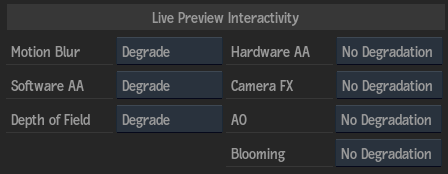
Motion Blur Degrade option
Select whether or not to degrade motion blur effects while the viewport is in Live Preview mode.
Software AA Degrade option
Select whether or not to degrade software anti-aliasing effects while the viewport is in Live Preview mode.
Depth of Field Degrade option
Select whether or not to degrade depth of field effects while the viewport is in Live Preview mode.
Hardware AA Degrade option
Select whether or not to degrade hardware anti-aliasing effects while the viewport is in Live Preview mode.
Camera FX Degrade option
Select whether or not to degrade Camera FX post-processing effects (Matchbox, Lens Flares, Rays) while the viewport is in Live Preview mode.
AO Degrade option
Select an ambient occlusion quality display setting while the viewport is in Live Preview mode.
Blooming Degrade option
Select whether or not to degrade Blooming while the viewport is in Live Preview mode.