The Autodesk Factory Design team understands how important flexibility and customization are to your daily workflows. Here are some new features to help you customize your workflows to get the most out of your factory designs.
Factory Design API (Application Programming Interface)
You can now update asset instances, and manipulate Factory Design layouts through API (Application Programming Interface).
The Factory Design in-CAD API is designed to allow programmatic access to, and manipulation of, Factory Design layouts. Factory Design API is available starting in the Factory Design Utilities 2018.1 release.
This new Factory Design API brings you new capabilities, allowing you to integrate your Factory layouts with other computer systems. For example, if you have a custom tool that is used to analyze ergonomics of a product assembly workflow, and adjust workstation/machine locations accordingly, output of this tool can be used to programmatically affect the location of assets in your Factory Design layout.
Customize your Key Parameters
Having the flexibility to customize key parameters enables you to better organize the parameters of your asset instances in a layout.
Inventor Parameters control the parameter names in the Parameter column of the Key Parameters dialog. Now, you can create a Factory Name to associate with your Inventor parameters in the Key Parameters dialog that display in the Factory Properties.
In this release of the Factory Design Utilities, you can further customize your Key Parameters by:
- Assigning a customized factory name to your key parameters.
- Creating your own factory tooltips that display in the Factory Properties dialog.
- Creating customized groups to better organize your parameters.
- Selecting to show All parameters or only Key parameters in the Key Parameters dialog.
Three new columns are now included in the Key Parameters dialog in Inventor Factory.
- Factory Name
- Factory Tooltip
- Group
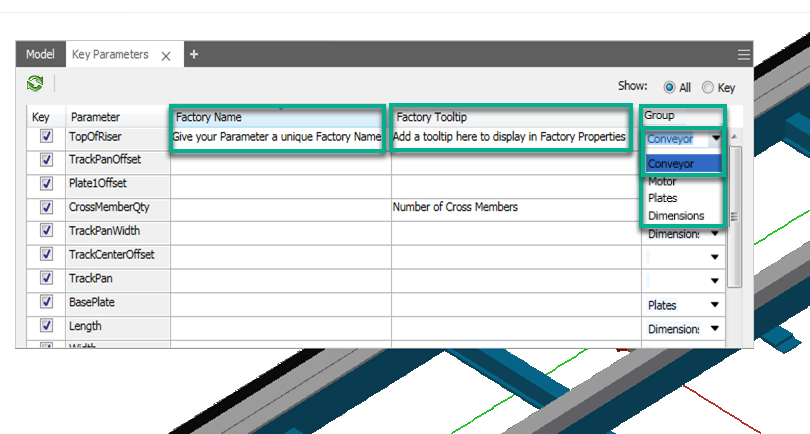
Factory Name
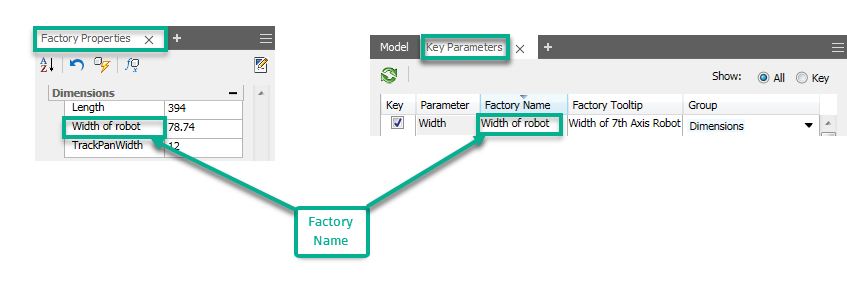
Create a unique factory name for your parameters so you can quickly identify the parameter in an asset instance. This custom factory name is entered in the asset definition for key parameters in the Factory Name column of the Key Parameters dialog.
Create a unique factory name for your key parameters in the Key Parameters dialog that displays in the Factory Properties dialog in all the Inventor Factory Design Utility.
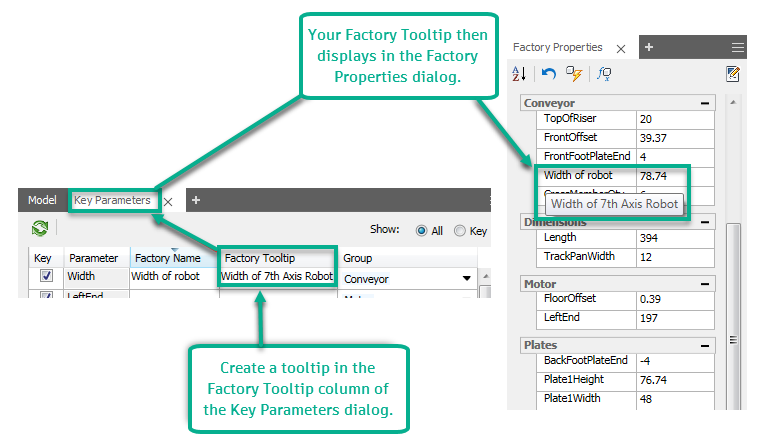
Factory Tooltip
Previously, only the parameter value would be present when viewing the key parameters of your asset in the Factory Properties dialog. In the Factory Design Utilities 2018.1 release, you can now add a custom Factory Tooltip that displays when you hover over the parameter value in the Factory Properties dialog.
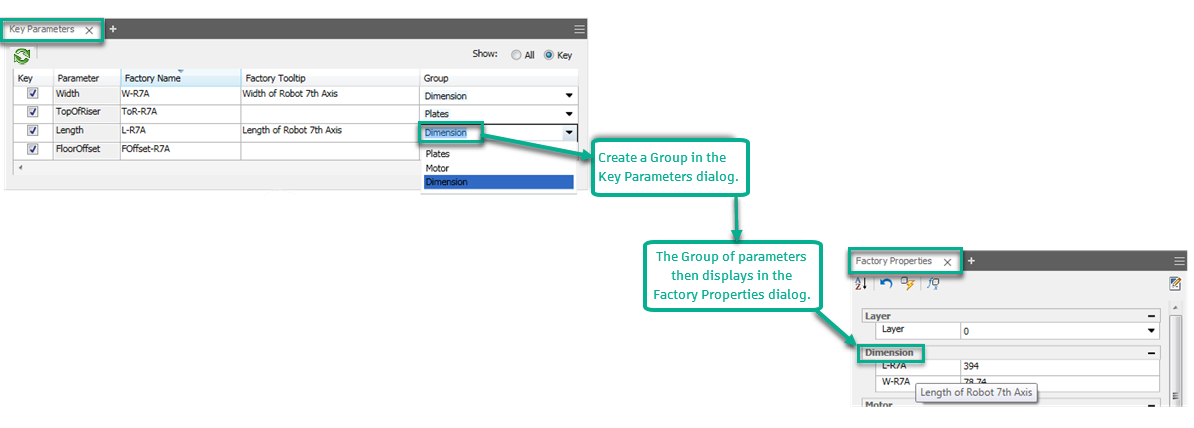
Grouping Key Parameters
Simplify the editing process of parameters in your design by grouping key parameters so they are organized, and easy to identify in your factory layout.
You can now add key parameters to your customized groups through the Key Parameters dialog in the Factory Asset Builder. Once you customize your Key Parameters, those categories are available in the Factory Properties dialog. Previously, key parameters only displayed in the Model category by default. If no Group is defined, parameters are added to the Model category.
Related Help topics:
AutoCAD Factory:
Modifying Properties Using the Factory Properties Browser
Factory Properties - Reference
Inventor Factory:
Create Factory Assets - Reference
Assign a Custom Color to Asset Connectors
Before this release of the Factory Design Utilities, connector colors were only available in green. Today, in the Asset Builder environment, you can now assign a custom color to your asset connectors within a connector group in the Inventor Model browser. Assigning a custom color to connectors allows you to quickly identify and match connections in your layout when placing or connecting assets in Inventor or AutoCAD.
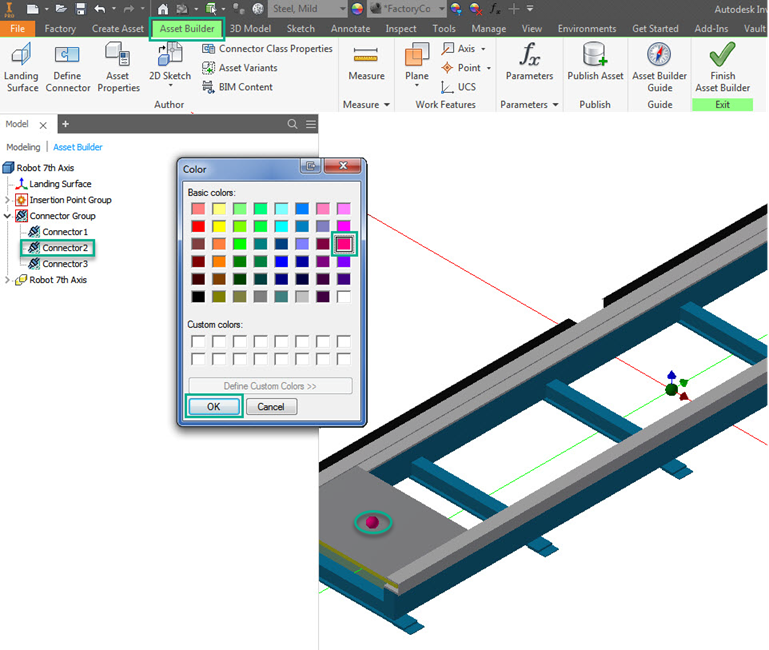
You can also assign a custom color to multiple connectors at once by holding down the Ctrl or Shift key and selecting the connectors you would like to assign a color to. Once the connectors are selected, choose a color from the Color palette to assign that color to all the selected connectors.
 A Factory Design Utilities Ideas submission
Inventor Factory:
AutoCAD Factory: