
Promptline Action Bar
Provides quick access to commonly used tools and options, such as Construction options Render Mode, and Live Reference options.

Current tool icon
Displays the icon for the currently active tool. In Alias there is always an active tool, which is known as a continuous tool. For more information see Current tool icon and Continuous tool workflow.
Switch Stages
Lets you quickly switch between open stages as well as provides access to the Stages Editor.
For more information see Stages.
Construction options
Displays the currently set construction options. Clicking the area opens a list of options, which include opening the Construction Options window as well as the Construction Presets included with the current user preference profile.
For more information see Construction Options.
Render Modes
Displays the currently set render mode options. Clicking the icon to choose between the Alias Renderer and the VRED Renderer.
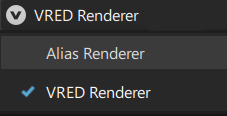
For more information, see the following:
 Live Reference icon
Displays the status of any Live References associated with the currently loaded .wire file.
- - No Live Reference is currently enabled.
 - A Live Reference is now enabled and available to be shared with VRED.
  Updates to a Live Reference are pending.
 A Live Reference error has occurred. For example Live Reference data has been deleted.
Clicking the icon opens the Live Reference options, such as Enable Live, Enable on Save, and Sync, which you can use for creating and managing Live Reference data.
For more information see How Live References Work in Alias.
 Camera-based Selection
Toggles camera-based selection on and off. When enabled, objects can be selected by clicking anywhere in the view, even if they are occluded by other objects.
For more information see Selection Options.
 History
Indicates whether objects in the current .wire file have construction history. When the currently loaded file does have any objects with the history, the icon does not display.
Clicking the icon opens options for managing construction history and provides access to the History Visualizer and History View.
- Global Suspend - Suspends construction history updates for all objects. When construction history is suspended, the History icon displays.
- History Visualizer - Opens the History Visualizer, which provides a visual representation of construction history in the view.
- History View- Opens the History View window, which shows a list of all objects with construction history in the current .wire file.
For more information about construction history, see Construction history and metadata.
Curve Snapping options
Provides access to the curve snapping tools as well as access to the Curve Snap Options window.
 Snap to CV/Edit Point - Turn on to precisely align new or existing geometry by snapping to control vertices (CVs) or edit points on curves or surfaces.
  Snap to Grid - Turn on to to precisely position objects by snapping them to the nearest grid intersection. This ensures accurate alignment during transformations like move, scale, or rotate.
 Snap to Curve - Turn on to precisely align objects, control vertices (CVs), or brush profiles by snapping directly onto existing curves or curve-on-surface.
 Curve Snap Options - Opens the Curve Snap Options window. See Curve Snap options for more information.
For more information about the snapping tools, see Snapping and Pivots.