
There are a number of commands available that can be used to edit hatches and contours.
- Remove Contours: Click the red X in the toolbar to remove an entire contour.
Tip: You can also right-click the contour in the project tree and choose Remove Contour.
- Move Contour: Selected contours or hatches can be moved using one of the following methods:
- Click and drag the green box at the center of the contour.
- Click
.
Tip: You can also right-click in the display and choose Move.
- Enter X and Y translations or choose to Center on Origin.
- Click Move.
If no contour or hatch is selected, the entire profile is moved.
- Rotate Contours: Selected contours can be rotated using one of the following methods:
- Click and drag the corners of the selection box around the contour. Hold down the Ctrl key to rotate the contour in 10◦ intervals. Hold down the Shift key to rotate the contour in 45◦ intervals.
- Click
.
Tip: You can also right-click in the display and choose Rotate.
- Either enter X and Y coordinates about which the rotation will be applied or choose to rotate Around Center Point.
- Enter the desired angle.
- Click Rotate.
If no contour is selected, the entire profile is rotated.
- Scale Contours: Selected contours or hatches can be scaled using one of the following methods:
- Click and drag one of the central bars of the selection box. Hold down the Ctrl key to scale the X and Y axes equally about the center of the contour. Hold down the Shift key to scale the X and Y axes equally about the opposite edge of the contour.
- Click
.
Tip: You can also right-click in the display and choose Scale.
- Enter a scale factor along the X and Y-axes. Use the Mirror in X and Mirror in Y options to flip the sign of the scale factor for the respective direction.
- Click Scale.
If no contour is selected, the entire profile is scaled.
- Move Points: Points can be moved using one of the following methods: The hatches connected to those points are moved accordingly.
- Click and drag one of the points and release it in the desired position.
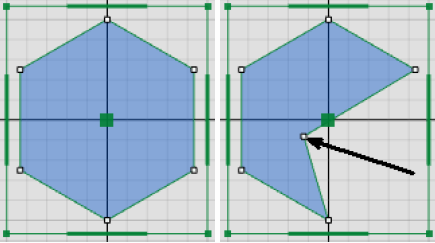
- Right-click a point and choose
Move Point.
- Enter a specific translation along the X and Y-axes (dX and dY) for the point. If the Relative check box is enabled, the distances entered are with respect to the current position of the point. If the Relative check box is disabled, the distances entered are with respect to the origin.
- Click Move.
- Click and drag one of the points and release it in the desired position.
- Merge Contours: Two end points of different contours are combined and become one corner. Thus, the two contours become one.
- Select two end points of open contours located close together.
- Right-click in the display and choose Merge Contours.
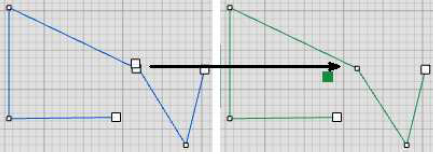
- Duplicate Contours: Right-click in the display and choose Duplicate Contours to make a copy of the selected contour.
- Add point: Right-click on, or near, a hatch and choose
Add Point to add a new point to the contour.
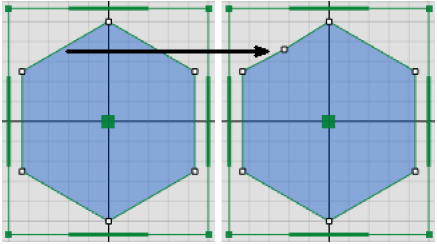
- Open Contour: Right-click the corner of a contour and choose
Open Contour to replace a corner with two end points.
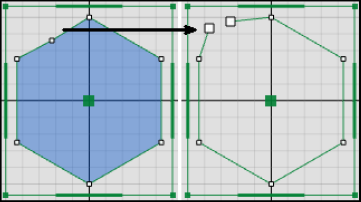
- Remove Point: Right-click the corner of a contour and choose Remove Point to remove the point. If an end point is removed, the hatch leading to this point is also removed. If a corner is removed, the two adjacent hatches are replaced by a hatch connecting the two remaining, adjacent corners.
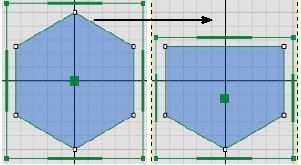
- Close Contour: Right-click a hatch or point on an open contour and choose
Close Contour to create a closed contour. The end points are either connected by a new hatch or, if they are very close together, they are merged.
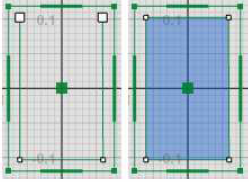
- Close Contours Automatically: Click and move two end points of the same open contour together to create a closed contour.