
Work with shared part number separation
If you're a hub admin, you can separate a shared part number group into individual models, each with its own unique part number.
Reasons to separate a shared part number group:
- Large groups may have been created accidentally during data transfer or hub migration.
- Someone mistakenly assigned the same part number to multiple unrelated models.
Once part number separation is started, it runs as a background process. A notification in the toolbar tracks progress and lets you know when it's finished. Secondary models in the group will each receive a unique part number. The primary model will keep the original part number. Part number separation can't be undone.
Access shared part number separation
- In the Fusion web client, click your profile in the upper right of the page.
- Click Admin.
- Click the Numbering tab.
- If necessary, scroll down to Shared Part Number Separation.
Separate a specific shared part number
Use the By SPN option under Shared Part Number Separation to find and separate one shared part number group.
In your hub, find and copy the shared part number you want to separate.
Under Shared Part Number Separation, select By SPN.
In the search box, paste the shared part number you want to separate.
Search will only work for a complete part number. Partial numbers are not supported.
Click Search.
The results table shows the matching shared part number group, if it exists.
Optional: To see the member models in the group before you select it, click the expand arrow next to the part number.
Select the checkbox next to the part number group.
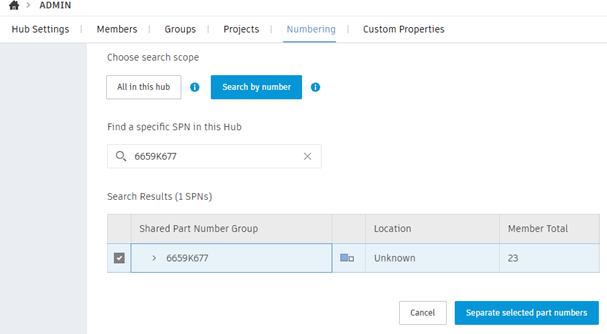
Click Separate selected SPNs.
In the Warning dialog, review the details and click OK.
Separate multiple shared part numbers
Use All SPNs in this hub to browse all shared part number groups and separate several at once.
Under Shared Part Number Separation, make sure that All SPNs in this hub is selected (it is by default).
Click Search.
The results table lists all shared part number groups in the hub. If there are more than 50, only the first 50 will be listed. You can scroll down to add 50 more at a time.
In the results table, select the part number groups you want to separate.
Optional: To see the member models in a group before you select it, click the expand arrow next to the part number.
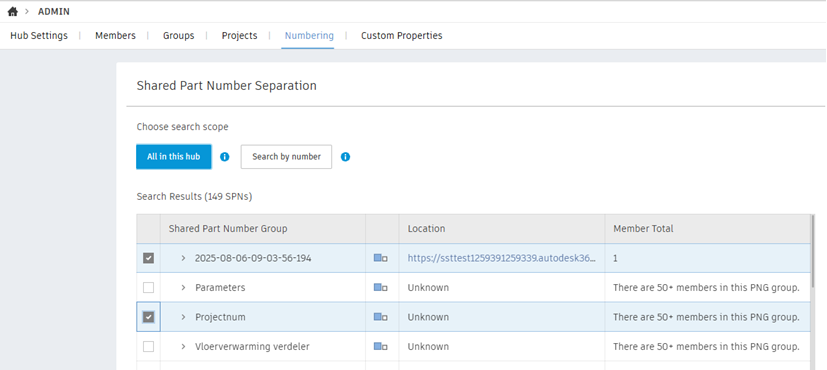
Click Separate selected SPNs.
In the Warning dialog, review the details and click OK.