
Work with BOM global overrides
Use global overrides to customize your BOM for manufacturing purposes. For example, if you have write-access to a part, you can hide its children from the BOM. Global overrides are in effect for all BOMs that reference the affected part.
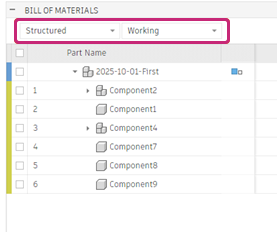
In the Bill of Materials dialog, make sure you are viewing the Working BOM in Structured layout.
Place the pointer over a part name to show the More
 icon.
icon.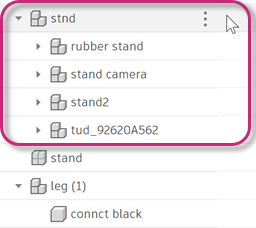
Click More
.In the drop-down menu, under Global Overrides, select the override you want to use.
To revert, follow the same steps and select None.
These are the available overrides.
Hide children: The icon for the part becomes a sectioned cube
 . The part and its children are treated as one, unified component. All quantities and physical properties are combined. This also applies when viewing the BOM in Parts Only layout and when exporting the BOM to a file. It also applies for any other BOM that references this part.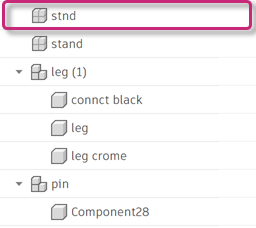
You might do this for a component such as a pressure relief valve for an espresso maker, where you just need to see values for the valve as a whole, rather than each of its individual parts.
Remove from all BOMs: Excludes the part and its children from this and any other BOMs (present and future) that might reference it. The part no longer appears in the BOM list.
You might do this for a part that is supplemental to the actual design you're working on; for example, if you're designing a television wall mount, you might have a television in the design, but you don't need it to be a part of the bill of materials.