
Remove from this parent
This excludes the child of a part from the BOM. You might do this for a part that is supplemental to the actual design you're working on; for example, if you're designing a coffee maker, you might have a cup in the design, but you don't need it to be a part of the bill of materials.
Remove from this parent is similar to Remove from all BOMs, except it only affects the part in the current BOM you're working on, rather than all BOMs in the hub.
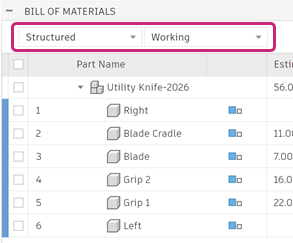
In the Bill of Materials dialog, make sure you are viewing the Working BOM in Structured layout.
Place the pointer over a part name to show the More
 icon.
icon.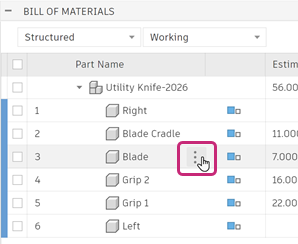
Click More
.In the drop-down menu, select Remove from this parent.
The child component is removed from the BOM.
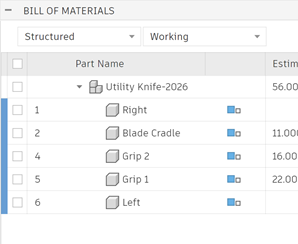 Tip: If you want to see the part that was removed, enable Compare to Model, or open the part in a separate Fusion window and view its BOM.
If you want to restore the part to the BOM, enable Compare to Model, then redo the preceding steps but select Add to this parent.