
Software Displacement Menu Settings
Regen
Enable to dynamically refresh the image as changes are made to the menu settings.
Controls Menu
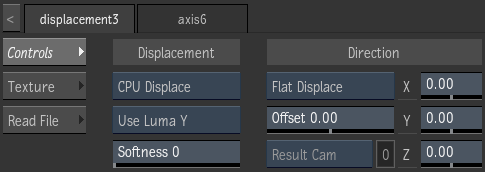
Displacement Type option
Select whether to use hardware (GPU) or software (CPU) displacement mapping.
Channel option
Select a colour channel to calculate the displacement map.
Softness field
Displays the level of rounding off, or softening of the spikes that result from colour values in the image that vary from pixel to pixel in the displacement map.
Softness rounds the edges of the displacement. The larger the softness, the smoother the displacement. Softness also affects rendering; the larger the softness, the longer it takes to render.
Displace Direction option
Select the direction in which a displace occurs when a displacement map is attached to a surface. Geometries parented to a displacement map always use Normal Displace as the direction.
| Select: | To Displace: |
|---|---|
| Flat Displace | In the X, Y, and Z directions. |
| Normal Displace | Bilinear and bicubic surfaces according to their normals. |
| Camera Displace | In the direction of the camera selected in the Displace Camera option. |
Offset field
Displays the offset to the displacement of X and Y.
Displace Camera option
Active only when Camera Displace is selected in the Displace Direction drop-down. Select which camera to take into account when using camera displacement.
Displace Camera field
Displays the active displace camera number.
Displacement X field
Displays the amount of displacement in pixel units along the X axis.
Displacement Y field
Displays the amount of displacement in pixel units along the Y axis.
Displacement Z field
Displays the amount of displacement in pixel units along the Z axis.
Texture Menu
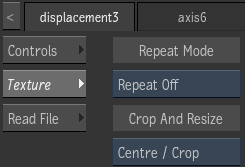
Repeat mode option
Select how the map pattern is repeated on the surface.
Fit Method option
Select a fit method option to be applied to the map.