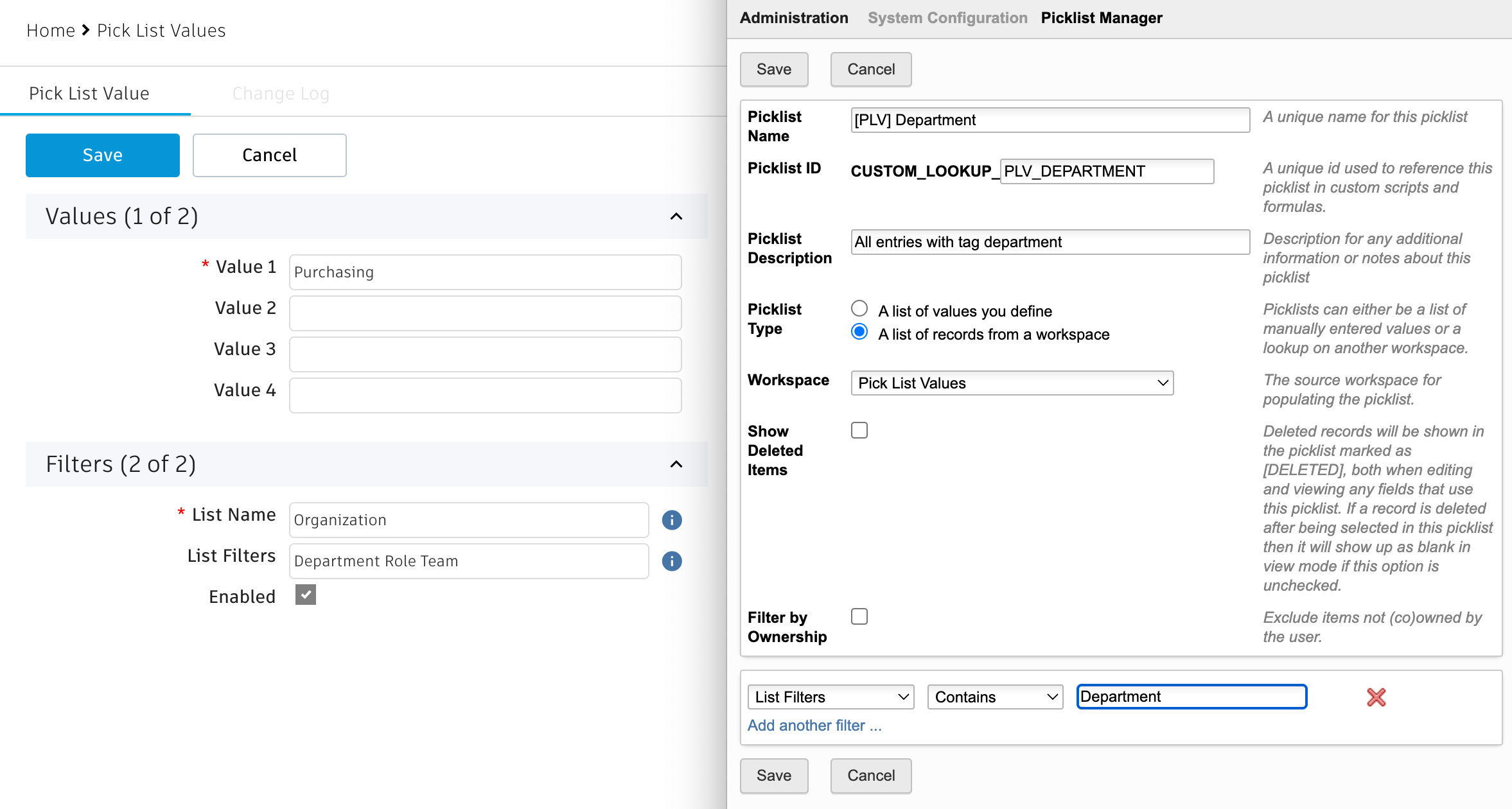
Create a picklist from the Pick List Values workspace
Note:
This template is not currently available for Fusion users.
Note: Before you start, you must be the site administrator to perform these steps.
Navigate to Administration > System Configuration > Picklist Manager.
Click New Picklist.
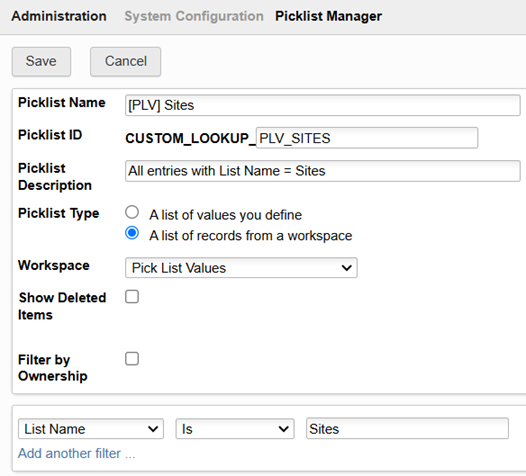
In the Picklist Name box, type in the name of the picklist. We recommend using the prefix [PLV] and the name you entered into the List Name box for each picklist record to easily identify this picklist as having come from the Pick List Values workspace.
Note: The Picklist ID box is automatically populated to match the picklist name. You may change this, if desired.Beside Picklist Type, select A list of records from a workspace.
From the Workspace drop-down list, select Pick List Values.
To filter the values relevant to this picklist from all other workspace entries, set the filter at bottom of this page to List Name > Is > The value you entered into the List Name box.
Click Save.
Note: This example uses the field List Name for creating a picklist as this is the most important filter. However, the List Filters field on records is also very useful. For example, you could enter multiple keywords in this field and use the Contains filter when defining a picklist. With this, values can be used in multiple pick lists and complex filters can be defined.