
Color Editor
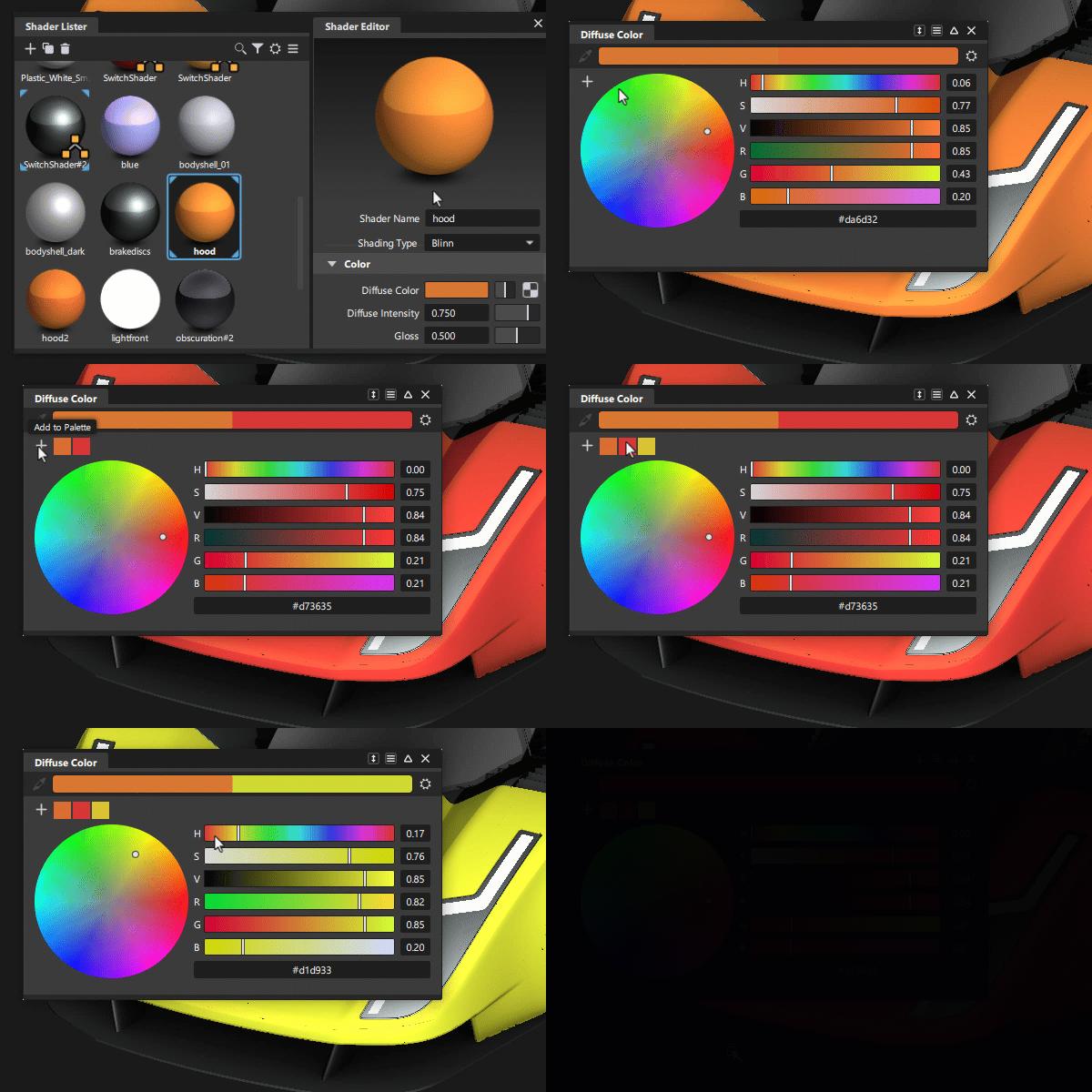
Use Color Editor to change the colors of environments, shaders, textures, and lights.
To access the Color Editor, click the color swatch in the applicable editor, such as in the Diagnostic Shade options or Diffuse Color in the Shader Editor. The Color Editor is not accessible from the Visualization menu.
When the Color Editor opens it displays the name of the color parameter being set.
Color Editor icon bar
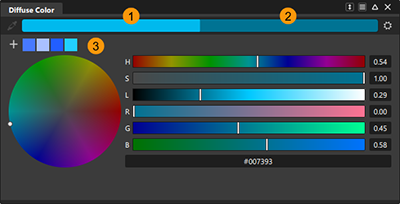
 - Previous color of the color property being edited.
 - Current color being edited.
 - Custom color palette.
 - Pipette - Click in the canvas with the pipette tool to pick up a color and add it to current color palette. A small preview sample of the color displays with the tool.
 Add to Palette - Adds the current color to the palette as a custom color. Custom colors added to the palettes are saved with your Preferences Profile. This only appears when Show Custom Palette is on.
 - Settings - Provides options for showing and hiding color controls. These options let you choose colors based on your preferred color method.
Show Custom Palette - Displays the swatches for the custom colors you create. Right-clicking the Custom Palette provides the following context menu options for the current custom color.
- Set Swatch as Current Color - Assigns the selected custom color as the starting color and current color being edited. This can be useful if you want to create a custom color starting with an existing custom color.
- Assign Current Color to Swatch - Assigns the color being edited to the selected color swatch in the custom palette.
- Edit - Sets the current color swatch as the current color being edited.
HSV and HSL - Choose between the Hue, Saturation, Value (HSV) and Hue, Saturation, Lightness (HSL) color models. The control sliders for the selected color model display. HSV and HSL channels cannot be displayed at the same time. By default HSV is selected.
The RGB control sliders can be displayed along with either selected model.
See About RGB color models for more information.
- 0 - 1 - Sets the RGB slider ranges to 0 to 1.
- 0 - 255 - Sets the RGB slider ranges to 0 to 255.
Color Editor workflows
Select and edit colors
When you select a color property to be edited, such as Diffuse Color, the Color Editor opens with property's color displayed as the previous color and current color swatches. The current color swatch updates as you adjust the color values in the editor. When you exit the editor, the current color is assigned to the color property.
You can adjust values by:
- Using the HS color wheel. Drag the white dot around the regions of the color wheel.
- Adjusting the slider controls or entering values in the numeric fields. For example, for the HSV model set Hue (H), Saturation (S), and Value (V). For RGB set the Red (R), Green (G), and Blue (B).
- Adding a hexadecimal color value into the field at the bottom of the editor.
Add a color to the custom color palette
The Color Editor displays two swatches at the top: the current color, which is on the right, and the previous color on the left.
To add the current color to the , click the
.The color is added to the palette.
Grab a color from the screen
You can select a color that appears in an image or from other UI regions.
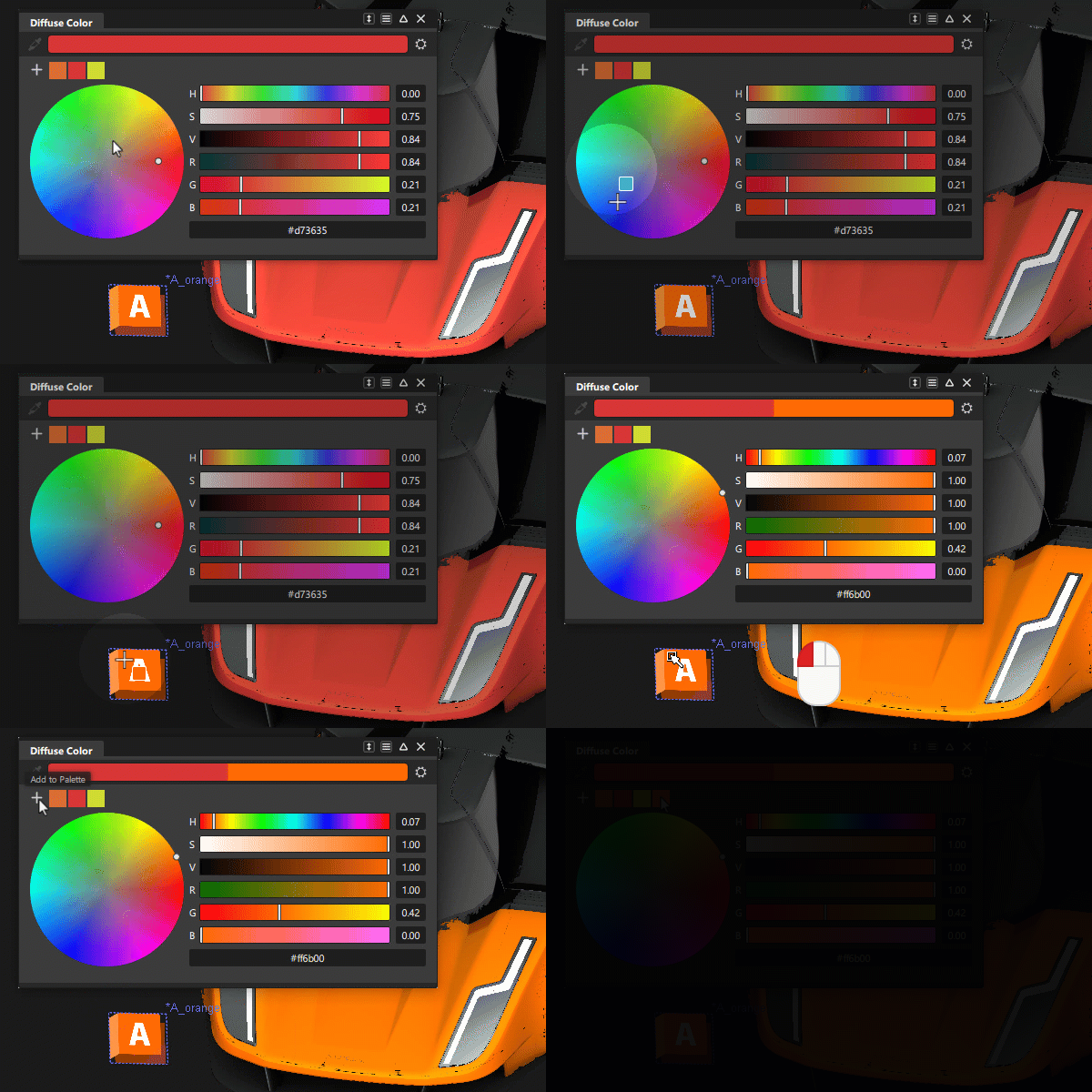
Click the Pipette icon.
A transparent circle with a crosshair icon replaces the cursor.
Hover the circle over the region of any image or UI element with the color your want to grab.
A small square previews the color near the crosshair icon.
Click to grab the color.
The color is now the current color.
About color models
HSL color model
The HSL color model uses dimensions that are familiar to artists to specify colors: hue, lightness, and saturation.
There is one main difference between the HSL and HSV color models. In the HSV color model, both fully saturated colors (for example, pure red) and white have a value of 100%. In the HSL color model, fully saturated colors have a lightness (value) of 50% and white has a lightness (value) of 100%. In the HSL color model, pure white is perceived to be “lighter” than fully saturated colors (for example, pure red).
HSV color model
The HSV color model uses dimensions similar to the HLS color model: hue, saturation and (brightness) value.
Hue
Hue is the quality humans use to distinguish one color from another. For example, red, green, and yellow are hues.
Saturation
Saturation is the quality that distinguishes a strong color from a weak one. At 100% saturation, the hue is perceived at its strongest; 0% saturation is grayscale — there is no hue, only black, white, or a shade of gray.
Lightness
Lightness distinguishes light colors from dark ones. Black has a lightness of 0, and white has a lightness of 1 (and a saturation of 0).
Value
Value is the brightness value; it distinguishes light colors from dark ones. Black has a brightness value of 0%, and white has a brightness value of 100% (and a saturation of 0%).
RGB color model
Red, green, and blue are the additive primary colors. The RGB color model describes how red, green, or blue light combines at different intensities to produce different colors. In Alias, each component color can have a value from 0 (zero intensity) to 1, 100, or 255 (full intensity).
The RGB color model is useful because it relates directly to how monitors emit light to create colors. However, it is often hard for determine what the RGB values are for a specific color. If you are “mixing” a color, you may find the HLS or HSV model more useful.