
Work with properties in the Bill of Materials
You can modify properties inside the Bill of Materials, provided they are not locked or read-only. Since the changes you make to properties in this way are saved to the cloud, they are retained even if you don't explicitly save your design (File > Save).
Edit a cell in the Bill of Materials
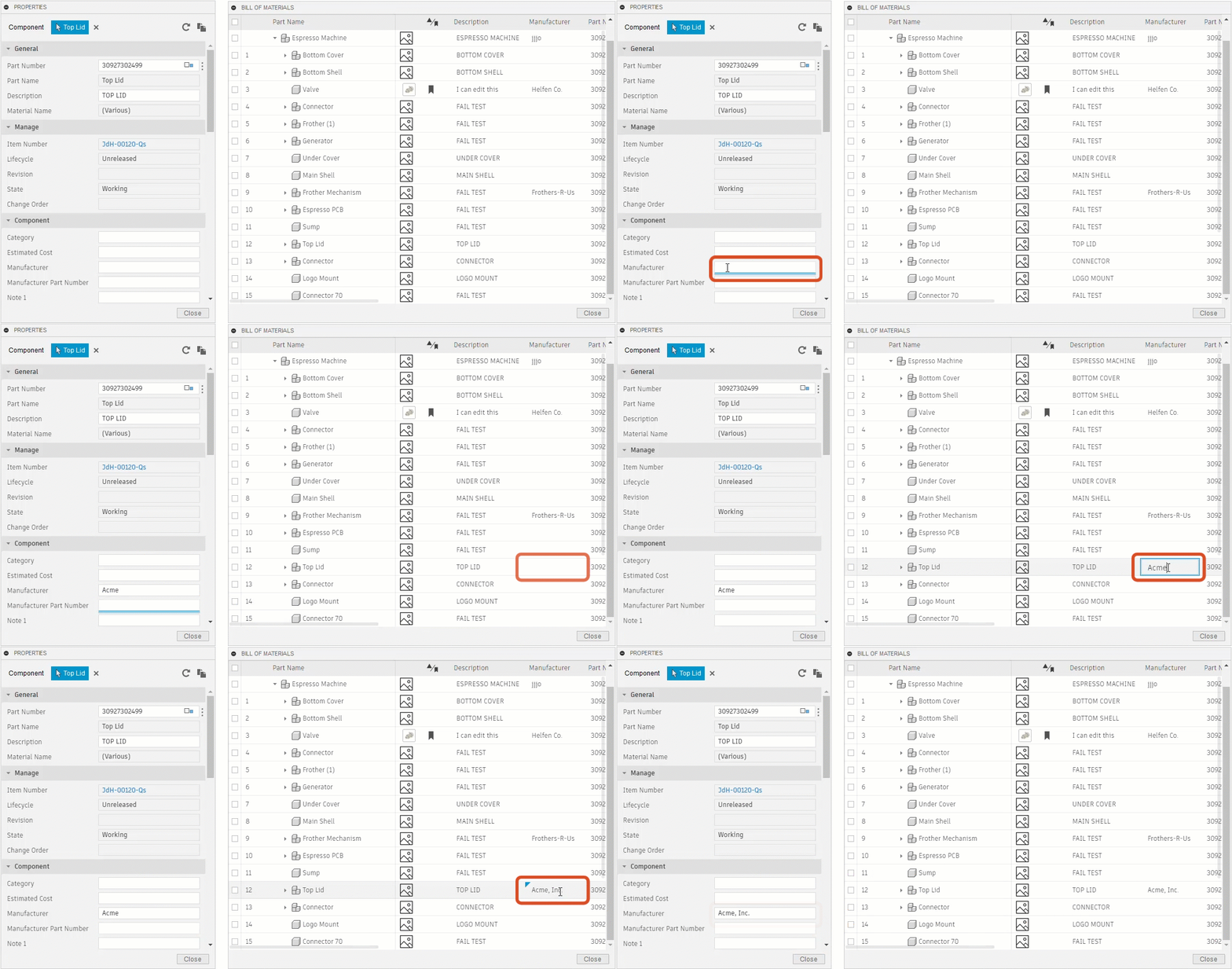
In the Bill of Materials, click inside the cell you want to edit.
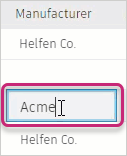
Make your changes and press Enter.
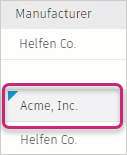
The small triangle
 in the cell indicates that the change is being saved to the cloud.
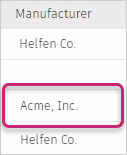
After a few moments, your changes are applied.
Override quantities and physical properties
At times you may want to modify these values in the Bill of Materials:
Quantities: For example, to include spare bolts or other items.
Physical properties (if enabled in your hub): Your design might be simplified to optimize performance, so it's possible that a value (for example, mass) in the Bill of Materials is more than what's being represented in the design. You can modify:
Mass
Volume
Area
Length
Width
Height
You can't modify quantities that are calculated using the preceding values, such as Total Mass or Density (mass divided by volume).
To override a quantity or a physical property:
In the Bill of Materials, edit a cell to enter a new value.
The value you enter is displayed in orange. Values must be greater than zero.
Place the pointer over the number to see what the original value is in the design.
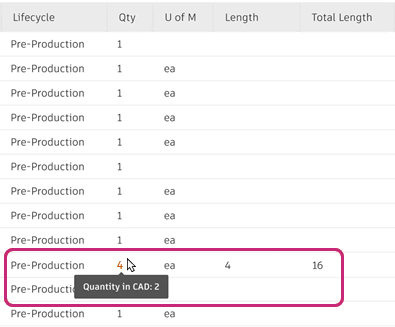
If your hub admin has enabled physical properties, the Bill of Materials shows updated totals for physical measurements such as length, weight, and more.
Optional: to remove the override, delete the contents of the cell and press Enter.
Override estimated costs in the Bill of Materials
Estimated cost for an individual component is set in its properties. In the Bill of Materials, you can enter new estimated costs for items without affecting their properties in the original design. You may want to do this to account for out-of-date pricing, a better price offered by a different supplier, external factors like labor, or other reasons.
In the Bill of Materials, make sure the Estimated Cost column is enabled under Column Settings
 .
.Find the part whose cost you want to change, and enter the new amount in the Estimated Cost column.
If you do this to a parent component, whose cost is calculated based on its children, the new estimated cost is displayed in rust-colored text.
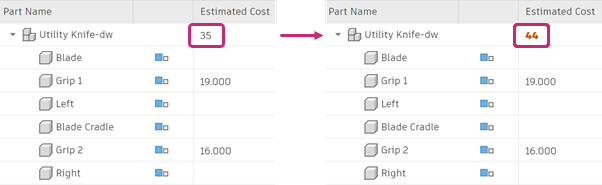
To see the original calculated value, place the pointer over the new value.
A tooltip opens containing the original value.
To restore the calculated value, right-click the new value, select Clear contents, and press Enter.
Make changes using the context menu
Right-click a cell inside the Bill of Materials.
Use the context menu options to make changes.
- Copy: Enables you to copy data from the Bill of Materials and apply it elsewhere; for example, copy a part number so you can apply it to another component in the design as a shared part number.
- Paste: Paste clipboard contents into a cell.
- Clear contents: Delete the contents of a cell.