Attach a drawing to an item
Requirements
The item must have a status of Development in order to attach a drawing to it.
Attach a drawing
You can attach a drawing to an item using the Upchain web app, even if the item does not have a CAD model associated with it. You may do this if:
- The item does not require a CAD model but still needs some form of manufacturing or assembly schematics.
- A drawing with the required formatting is located after the design phase has begun and uploaded to the item for easy access by the designers.
The following file formats are supported:
- *AI,
- BMP,
- *CATDrawing,
- *DFT,
- *DRW,
- DXF,
- DWG,
- *EDRW,
- GIF,
- *IDW,
- JPEG (JPG),
- PDF,
- PNG,
- SLDDRW,
- TIF (TIFF), and
- ZIP
- The file formats marked with an asterix (*) may be attached to an item as a drawing, however, they cannot be viewed in the PDF viewer.
- A drawing uploaded using the Upchain web app is not associated with the CAD model that is already associated with the item. The drawing can only be associated with a CAD model using the appropriate CAD software and pushed to Upchain using the CAD plugin.
- Drawings uploaded using the Upchain web app do not contain custom properties.
To attach a drawing:
In the project's BOM (
 ) section, select the item for which you want to attach a drawing.
In the BOM table, select more actions
 > Import > Drawing.
The Add Drawing window opens.
Click + Add Documents.
A file browser opens.
Locate the drawing to attach to the item and click Open.
Wait for the drawing to finish uploading, then click OK.
The item now contains a drawing. You can see that an item contains a drawing when the icon displayed under the Files column in the BOM table is black ( ).
).
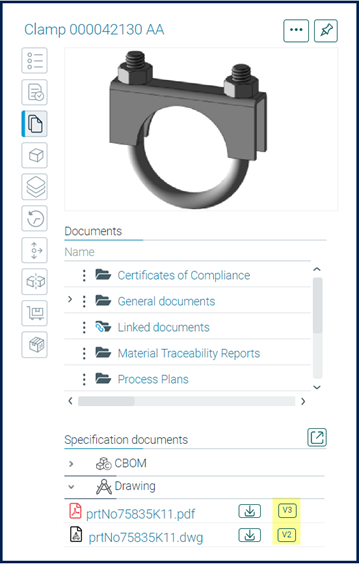
You can find the drawing in the item details pane > Documents > Specification documents > Drawing.
Once the drawing is attached to an item you can view the attached drawing in the PDF Viewer and send the item to a Change request to release the item if needed.
About an attached drawing's file version number
If you import a drawing with the same filename and the same extension, this overwrites the existing drawing file (of the same filename and extension) and automatically increments the drawing’s version number by one.
This is how you can manage a drawing if:
- The drawing is does not come from a CAD system (eg. PDF)
- You are a non-CAD user
- The item does not contain an associate CAD model
You can see the drawing's version number next to the drawing's file name in the item details pane > Documents > Specifications documents > Drawing section.