
Finding Your Way Around
When you click the TruLaser tab or import laser data, a ribbon automatically appears across the top of the main window providing access to a palette of commands and controls.
Based on the context in which you click the TruLaser tab, the ribbon contents vary.
-
If you click TruLaser without a file open, the following ribbon appears:
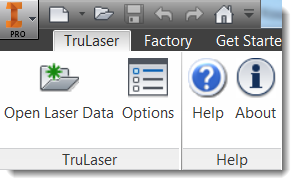
From here, you can open a laser data file or enter laser data settings.
-
If you click TruLaser with a part file open, the following ribbon appears:
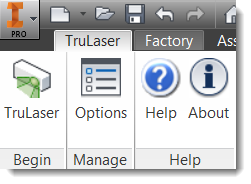
From here, you can enter laser data settings or click TruLaser to create a projector and target to associate with the part:
-
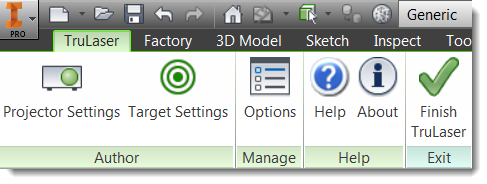
If you click TruLaser with an assembly file open, the following ribbon appears.

This ribbon is organized into tabs labeled by task. On each tab, commands appear on a series of panels. Some panels contain a drop-down arrow, which indicates that more commands are available.
Hover your mouse over a command on any of the ribbons to see a brief description of what it does. Pressing F1 links to the command's help topic for detailed information.
Navigating the TruLaser Browser
The browser is a floating window from which you access data and settings for the open project.
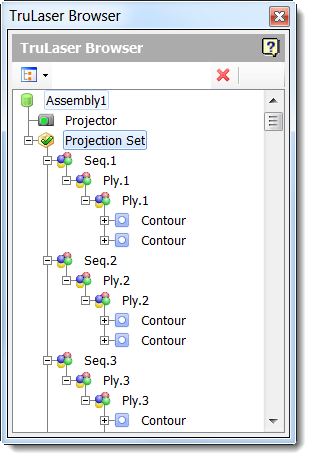
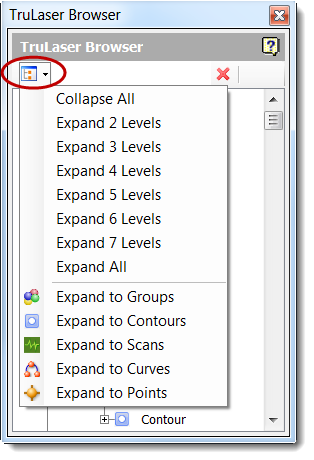
The tree drop-down menu provides a quick way to change the browser display:
Right-click on a browser item to see a menu of options. For example, by right-clicking on the Projection Set node in the browser, you see the following context menu:
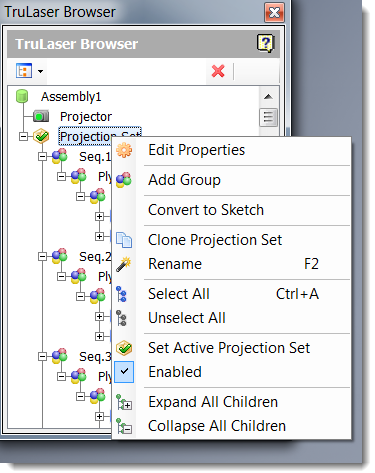
Menu options vary based on the node you select. The following are some of the more common options:
- Edit Properties: Shows the settings for the selected item. Settings vary based on the item type.
- Rename: Highlights the current name of the selected item so that you can type in a new name.
- Select All: Selects all the items in the tree including, providing an easy way to enable or disable all items at once. Right-click once selected to see the enable/disable menu option.
- Unselect All: Deselects all selected items.
- Enabled: Shows or hides the node and all items in the node sublevels in the canvas display.
- Expand All Children: Expands all the nodes in the tree so that you see all items at all levels in the browser.
- Collapse All Children: Shows only the top-level groups in the browser.
Searching
To search for an item in the browser, enter a name or key word in the search field.
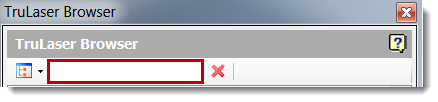
Click the red X to clear search results and return to the full browser view.
Accessing Commands from the Canvas
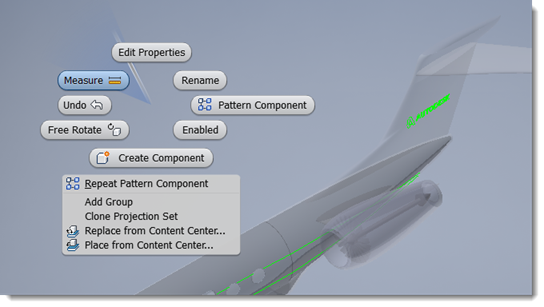
Right-click in the canvas to see more commands. The options that appear vary based on the context of what you are doing at the time you access the menu and might include a mix of TruLaser and Inventor options.
Redisplaying the Browser If It Closes
If you close the TruLaser browser, you can retrieve it by completing the following steps:
- Click the View tab.
- Click User Interface in the ribbon to display a selection list.
- Select the TruLaser Browser checkbox.